
Winning and losing
Our game can be played, but it never end. When the ball falls, it comes back. When all the bricks are broken, nothing happens.
In this part, we’ll give the player 3 lives, a score, and a way to win and to lose. To do this, we’ll use one of the most useful tools in game development: the state machine.
State machine
Section titled “State machine”At any moment, our game is in one of these situations:
- ready: the ball sits on the paddle and waits for the player to press
SpaceSpaceSpaceSpace . - playing: the ball moves and breaks bricks.
- won: all the bricks are broken.
- lost: the player has no lives left.
These situations are called states. The game is always in exactly one state, and some events make it go from one state to another.
For example, pressing
We can draw all the states and the events that connect them:
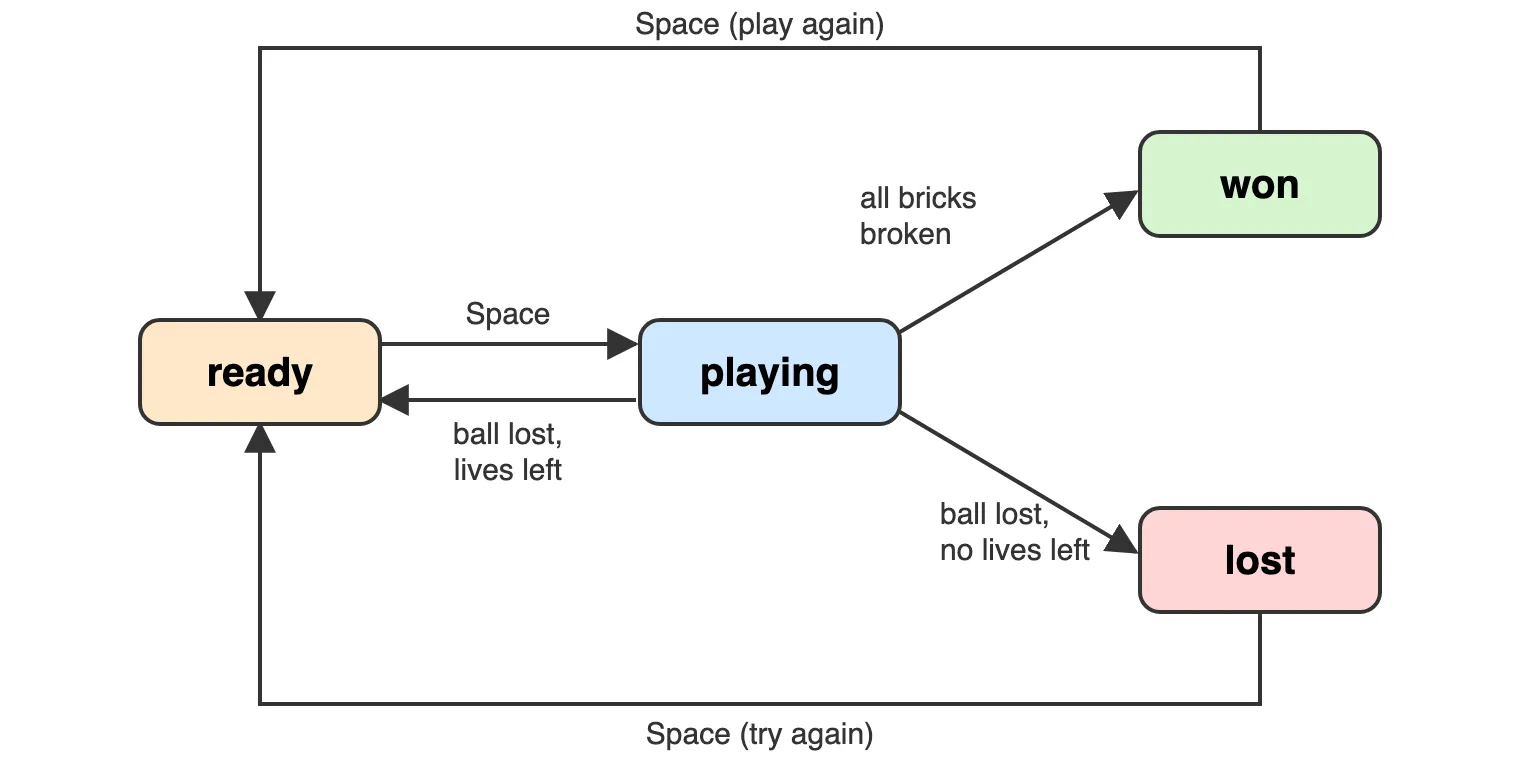
This is a state machine. You can draw it before writing the code to check that every state has a way out, and that you didn’t forget a case, or use excalidraw which is super useful if you don’t have paper on hand.
In the code, we store the current state in a Game object, with the number of lives and the score:
const startLives = 3
-- ...
local Game = persist.onReload({ -- "ready", "playing", "won" or "lost" state = "ready", lives = startLives, score = 0,}, "game")Why is the state a string and not a number?
We could write state = 1 for ready, state = 2 for playing, etc. It would work, but when you read if Game.state == 2 then, you have to remember what 2 means.
if Game.state == "playing" then can be read without remembering anything.
The ready state
Section titled “The ready state”In the ready state, the ball stays on the middle of the paddle and follows it. When the player presses
local function updateReady() -- The ball sits on the middle of the paddle local x = Paddle.position.x + Paddle.size.x / 2 - Ball.size.x / 2 local y = Paddle.position.y + Paddle.size.y Ball.position = vec.V2(x, y)
if io.isKeyJustPressed("Space") then Game.state = "playing" -- Launch the ball up, and a bit to the right Ball.velocity = vec.V2(0.4, 1):normalized():scale(ballSpeed) endendWe use io.isKeyJustPressed and not io.isKeyDown. isKeyDown is true on every frame while the key is held down, while isKeyJustPressed is only true on the frame where the key starts being pressed.
For something that happens once, like launching the ball, isKeyJustPressed is what we want.
Losing a life
Section titled “Losing a life”At the end of updateBall, we replace the code that put the ball back at its starting position. Now, falling below the screen costs a life:
-- The ball fell below the screen: lose a life if Ball.position.y < -1 then Game.lives -= 1 if Game.lives > 0 then Game.state = "ready" else Game.state = "lost" end endIf there are lives left, we go back to the ready state, so the ball goes back on the paddle. Otherwise, the game is lost.
Showing the score, lives and messages
Section titled “Showing the score, lives and messages”The player needs to know how many lives they have left, and what to do in each state. Let’s draw some text!
First, every broken brick gives 10 points. In updateBall, add this line right after brick.broken = true:
Game.score += 10To draw text, we need a font. Vectarine provides the Roboto font by default (which looks a bit like the text you are currently reading), but it doesn’t match the style of this game!
Instead, we use m6x11.ttf font from the fonts folder (made by Daniel Linssen). We load it with the loader module, like images.
We’ll also load the heart.png image to show the lives:
const heartImage = loader.loadImage("textures/heart.png", false)const font = loader.loadFont("fonts/m6x11.ttf")Then, at the end of drawGame, after the ball, we draw the score and one heart per life:
-- The score, at the top left font:drawText("SCORE " .. Game.score, vec.V2(-0.92, 0.87), 0.09, vec4.WHITE)
-- One heart per life, at the top right for life = 1, Game.lives do heartImage:draw(vec.V2(0.92 - life * 0.09, 0.87), vec.V2(0.07, 0.06)) endfont:drawText takes the text, the position of its bottom left corner, its height and its color.
.. glues two pieces of text together. "SCORE " .. 120 gives "SCORE 120".
Centering the messages
Section titled “Centering the messages”The messages like “GAME OVER” should be in the middle of the screen. To center a text, we need to know how wide it is: font:measureText tells us.
Then, if we start drawing the text at minus half its width, the middle of the text is at x = 0, the center of the screen.
We’ll draw several centered messages, so let’s write a function for it. Put it above drawGame:
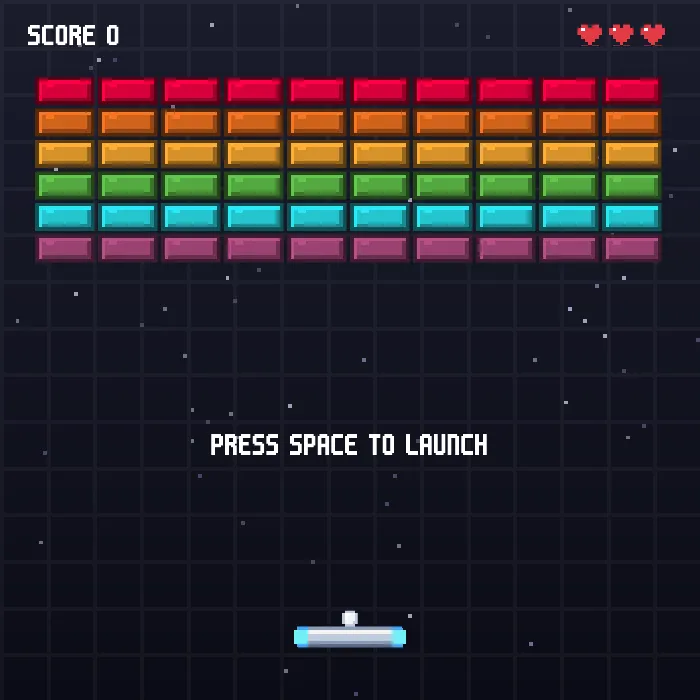
-- Draws text centered horizontally at the height ylocal function drawCenteredText(text: string, y: number, size: number) local width = font:measureText(text, size).width font:drawText(text, vec.V2(-width / 2, y), size, vec4.WHITE)endNow, at the very end of drawGame, we show a different message in each state:
if Game.state == "ready" then drawCenteredText("PRESS SPACE TO LAUNCH", -0.3, 0.09) elseif Game.state == "won" then -- A see-through black rectangle over the game makes the text easier to read graphics.drawRect(vec.V2(-1, -1), vec.V2(2, 2), vec4.createColor(0, 0, 0, 0.6)) drawCenteredText("YOU WIN!", 0, 0.18) drawCenteredText("PRESS SPACE TO PLAY AGAIN", -0.15, 0.08) elseif Game.state == "lost" then graphics.drawRect(vec.V2(-1, -1), vec.V2(2, 2), vec4.createColor(0, 0, 0, 0.6)) drawCenteredText("GAME OVER", 0, 0.18) drawCenteredText("PRESS SPACE TO TRY AGAIN", -0.15, 0.08) endThe last number of vec4.createColor is the alpha, the opacity of the color. 1 is fully opaque, 0 is invisible, and 0.6 lets us see the game behind the rectangle.
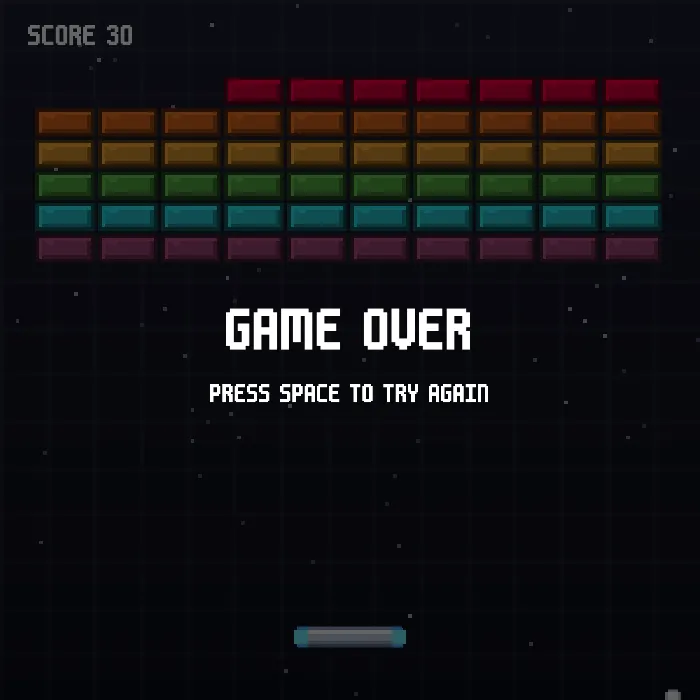
When the game is won or lost, pressing resetGame to start a new game. Resetting means putting everything back like at the start:
the lives, the score, and the bricks.
local function resetGame() Game.lives = startLives Game.score = 0 -- Repair all the bricks for _, brick in Bricks do brick.broken = false end Game.state = "ready"endBecause we used a broken value for the bricks in the previous part, bringing them back is easy: we just set broken to false for all of them.
resetGame uses Bricks and changes the state, so put it after updateReady, below the creation of Bricks.
Why don’t we call createBricks() again?
We could write Bricks = createBricks(), but Bricks is persisted: persist.onReload gave us a table that Vectarine remembers between reloads.
If we replace it with a new table, the new bricks would be lost on the next save, and the old ones would come back!
It is simpler to modify the bricks we already have.
Using the states in Update
Section titled “Using the states in Update”We now have a function for each state: updateReady, updateBall and resetGame. We can use them in Update, so that it does something different depending on the state:
function Update(deltaTime: number) updatePaddle(deltaTime) if Game.state == "ready" then updateReady() elseif Game.state == "playing" then updateBall(deltaTime) elseif Game.state == "won" or Game.state == "lost" then if io.isKeyJustPressed("Space") then resetGame() end end drawGame()endelseif means “otherwise, if”. Luau checks the conditions from top to bottom and only runs the first block whose condition is true.
So, on every frame, the code of only one state is executed.
This is important! Imagine we wrote two separate if instead. When the player presses resetGame changes the state to ready.
Then, the next if would see the ready state and the same elseif, the ball is launched on the next press.
The paddle can move in every state, so updatePaddle stays outside of the if.
Winning
Section titled “Winning”The player wins when all the bricks are broken. To check this, we go through all the bricks and look for one that is not broken:
-- Returns true if all the bricks are brokenlocal function allBricksBroken(): boolean for _, brick in Bricks do if not brick.broken then -- We found a brick that is not broken, no need to look further return false end end -- We went through all the bricks and they are all broken return trueendreturn stops the function immediately, even in the middle of a loop. As soon as we find one brick that is not broken, we know the answer is false, so we stop there.
If the loop finishes without finding one, all the bricks are broken and we return true.
Put this function above updateBall, and use it in updateBall, right after the brick collision loop:
if allBricksBroken() then Game.state = "won" end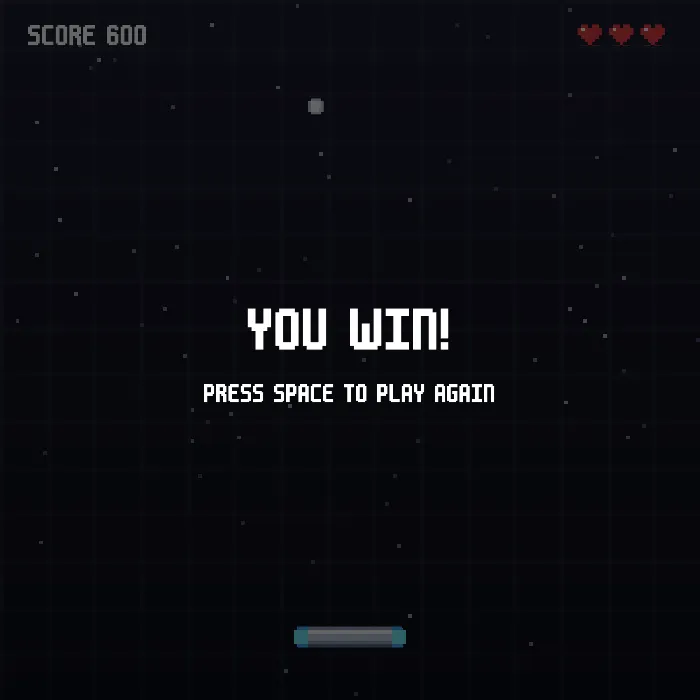
Breaking 60 bricks every time you want to test the victory screen takes a while. I don’t want to beat the game every time I want to test the end screen! To test things faster, change rows to 1 and press 6 afterwards!
In the same way, you can test the game over screen by opening the watcher with game and setting lives to 1.
The whole code so far
Section titled “The whole code so far”Here is the whole game.luau file at this point:
const debug = require("@vectarine/debug")const graphics = require("@vectarine/graphics")const vec4 = require("@vectarine/vec4")const vec = require("@vectarine/vec")const io = require("@vectarine/io")const persist = require("@vectarine/persist")const loader = require("@vectarine/loader")
const backgroundImage = loader.loadImage("textures/background.png", false)const paddleImage = loader.loadImage("textures/paddle.png", false)const ballImage = loader.loadImage("textures/ball.png", false)const brickImage = loader.loadImage("textures/brick.png", false)const heartImage = loader.loadImage("textures/heart.png", false)const font = loader.loadFont("fonts/m6x11.ttf")
const paddleSpeed = 1.8const ballSpeed = 1.3const startLives = 3
const brickSize = vec.V2(0.17, 0.08)-- The space between two bricksconst brickGap = 0.01const columns = 10const rows = 6
-- One color per row of bricks, from the top row to the bottom rowconst rowColors = { vec4.createColor(1.0, 0.0, 0.27, 1), vec4.createColor(0.97, 0.46, 0.13, 1), vec4.createColor(1.0, 0.68, 0.2, 1), vec4.createColor(0.39, 0.78, 0.3, 1), vec4.createColor(0.17, 0.91, 0.96, 1), vec4.createColor(0.71, 0.31, 0.53, 1),}
-- The game state can only be one of these 4 stringstype GameState = "ready" | "playing" | "won" | "lost"
local Game = persist.onReload({ state = "ready" :: GameState, lives = startLives, score = 0,}, "game")
local Paddle = persist.onReload({ position = vec.V2(-0.16, -0.85), size = vec.V2(0.32, 0.06),}, "paddle")
local Ball = persist.onReload({ position = vec.V2(0, -0.5), size = vec.V2(0.045, 0.045), velocity = vec.V2(0.6, 1.1),}, "ball")
-- Creates the list of all the bricks of the levellocal function createBricks() local bricks = {} local y = 0.7 for row = 1, rows do local x = -0.9 for column = 1, columns do table.insert(bricks, { position = vec.V2(x, y), color = rowColors[row], broken = false, }) x += brickSize.x + brickGap end y -= brickSize.y + brickGap end return bricksend
local Bricks = persist.onReload(createBricks(), "bricks")
-- Returns true if the rectangle at posA of size sizeA touches the rectangle at posB of size sizeB.local function overlaps(posA: vec.Vec2, sizeA: vec.Vec2, posB: vec.Vec2, sizeB: vec.Vec2): boolean return posA.x < posB.x + sizeB.x and posA.x + sizeA.x > posB.x and posA.y < posB.y + sizeB.y and posA.y + sizeA.y > posB.yend
-- Returns true if all the bricks are brokenlocal function allBricksBroken(): boolean for _, brick in Bricks do if not brick.broken then return false end end return trueend
-- Moves the paddle using the arrow keyslocal function updatePaddle(deltaTime: number) if io.isKeyDown("right") then Paddle.position.x += paddleSpeed * deltaTime end if io.isKeyDown("left") then Paddle.position.x -= paddleSpeed * deltaTime end Paddle.position.x = math.clamp(Paddle.position.x, -1, 1 - Paddle.size.x)end
-- Moves the ball and makes it bounce on the walls, the paddle and the brickslocal function updateBall(deltaTime: number) Ball.position += Ball.velocity:scale(deltaTime)
-- Left, right and top sides if Ball.position.x < -1 then Ball.velocity.x = math.abs(Ball.velocity.x) end if Ball.position.x + Ball.size.x > 1 then Ball.velocity.x = -math.abs(Ball.velocity.x) end if Ball.position.y + Ball.size.y > 1 then Ball.velocity.y = -math.abs(Ball.velocity.y) end
-- Bounce on the paddle, only when the ball is going down if Ball.velocity.y < 0 and overlaps(Ball.position, Ball.size, Paddle.position, Paddle.size) then local ballCenter = Ball.position.x + Ball.size.x / 2 local paddleCenter = Paddle.position.x + Paddle.size.x / 2 -- offset is -1 on the left end of the paddle, 0 in the center and 1 on the right end local offset = (ballCenter - paddleCenter) / (Paddle.size.x / 2) Ball.velocity = vec.V2(offset, 1):normalized():scale(ballSpeed) end
-- Break the first brick the ball touches for _, brick in Bricks do if not brick.broken and overlaps(Ball.position, Ball.size, brick.position, brickSize) then brick.broken = true Game.score += 10 local ballCenter = Ball.position.x + Ball.size.x / 2 local hitTheSide = ballCenter < brick.position.x or ballCenter > brick.position.x + brickSize.x if hitTheSide then Ball.velocity.x = -Ball.velocity.x else Ball.velocity.y = -Ball.velocity.y end break end end
if allBricksBroken() then Game.state = "won" end
-- The ball fell below the screen: lose a life if Ball.position.y < -1 then Game.lives -= 1 if Game.lives > 0 then Game.state = "ready" else Game.state = "lost" end endend
-- The ball waits on the paddle until the player presses Spacelocal function updateReady() local x = Paddle.position.x + Paddle.size.x / 2 - Ball.size.x / 2 local y = Paddle.position.y + Paddle.size.y Ball.position = vec.V2(x, y)
if io.isKeyJustPressed("Space") then Game.state = "playing" Ball.velocity = vec.V2(0.4, 1):normalized():scale(ballSpeed) endend
-- Puts everything back like at the start of the gamelocal function resetGame() Game.lives = startLives Game.score = 0 for _, brick in Bricks do brick.broken = false end Game.state = "ready"end
-- Draws text centered horizontally at the height ylocal function drawCenteredText(text: string, y: number, size: number) local width = font:measureText(text, size).width font:drawText(text, vec.V2(-width / 2, y), size, vec4.WHITE)end
-- Draws the whole gamelocal function drawGame() backgroundImage:draw(vec.V2(-1, -1), vec.V2(2, 2)) for _, brick in Bricks do if not brick.broken then brickImage:draw(brick.position, brickSize, brick.color) end end paddleImage:draw(Paddle.position, Paddle.size) ballImage:draw(Ball.position, Ball.size)
font:drawText("SCORE " .. Game.score, vec.V2(-0.92, 0.87), 0.09, vec4.WHITE) for life = 1, Game.lives do heartImage:draw(vec.V2(0.92 - life * 0.09, 0.87), vec.V2(0.07, 0.06)) end
if Game.state == "ready" then drawCenteredText("PRESS SPACE TO LAUNCH", -0.3, 0.09) elseif Game.state == "won" then graphics.drawRect(vec.V2(-1, -1), vec.V2(2, 2), vec4.createColor(0, 0, 0, 0.6)) drawCenteredText("YOU WIN!", 0, 0.18) drawCenteredText("PRESS SPACE TO PLAY AGAIN", -0.15, 0.08) elseif Game.state == "lost" then graphics.drawRect(vec.V2(-1, -1), vec.V2(2, 2), vec4.createColor(0, 0, 0, 0.6)) drawCenteredText("GAME OVER", 0, 0.18) drawCenteredText("PRESS SPACE TO TRY AGAIN", -0.15, 0.08) endend
function Update(deltaTime: number) updatePaddle(deltaTime) if Game.state == "ready" then updateReady() elseif Game.state == "playing" then updateBall(deltaTime) elseif Game.state == "won" or Game.state == "lost" then if io.isKeyJustPressed("Space") then resetGame() end end drawGame()endWhat we’ve seen so far
Section titled “What we’ve seen so far”Our game is now a complete game: you can win, you can lose, and you can play again.
We’ve seen:
- What a state machine is.
- How to use
elseifto run the code of only one state per frame. - The difference between
io.isKeyDownandio.isKeyJustPressed. - How to load a font and draw text, and how to center it with
measureText. - How to glue text together with
... - How to make a color see-through with its alpha.
- How to stop a function early with
return.
The game works, but it still feels a bit flat: there is no sound, and breaking a brick is not very satisfying. In the next part, we’ll add sounds, particles and screen shake to make the game feel great to play.