
The paddle
Now that you understand the basics of programming and finding bugs, we can start working on our Breakout-style game!
I made a zip file with all the assets we’ll need that you can download here. It already contains a textures folder with the images (.png files), a fonts folder with the font, and an audio folder with the sounds:
unzip it inside your project folder.
You should have the following folder structure:
├── audio├── fonts├── game.vecta├── luau-api├── plugins├── scripts└── texturesSetting the window size
Section titled “Setting the window size”Before writing any code, let’s make our game window square. Open the game.vecta file at the root of your project.
This file contains the settings of your game, like its title or the size of its window:
title = "Breakout"main_script_path = "scripts/game.luau"default_screen_width = 700default_screen_height = 700# ... the other settings are unchanged ...Change default_screen_width and default_screen_height to 700 and save the file.
The window size is only read when the project is opened, so close Vectarine and open it again to see the change. Vectarine reopens your last project automatically.
Why a square window? Remember that the screen is always 2 units wide and 2 units tall, whatever the size of the window. With a square window, 1 unit is the same number of pixels horizontally and vertically, so a square in our code is also a square on the screen. I picked 700 pixels because it fits on most screens, even on small laptops, while leaving some room for your code editor next to it.
Drawing a paddle
Section titled “Drawing a paddle”We start by drawing a paddle at the bottom of the screen.
-- The debug module is unused, but we keep it imported-- so you can quickly write debug.print to see what is the value of a variable and-- find if something is wrong.const debug = require("@vectarine/debug")
const graphics = require("@vectarine/graphics")const vec4 = require("@vectarine/vec4")const vec = require("@vectarine/vec")
-- Initialize a paddle variable with a position and a size.-- The position is the bottom left corner of the paddle.-- The paddle is 0.32 wide, so we start at x = -0.16 to center it on the screen.local Paddle = { position = vec.V2(-0.16, -0.85), size = vec.V2(0.32, 0.06),}
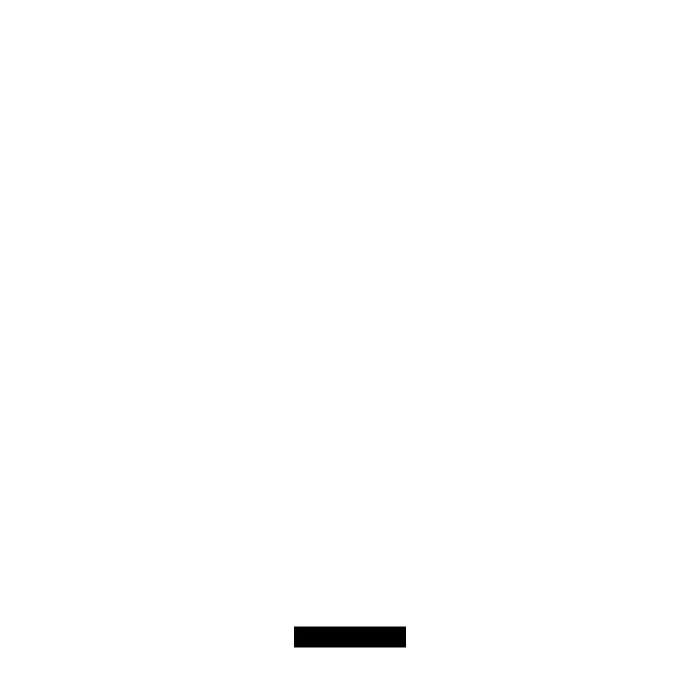
function Update(deltaTime: number) graphics.clear(vec4.WHITE) graphics.drawRect(Paddle.position, Paddle.size)endWhen you save, you should see a black paddle at the bottom of a white screen:
Moving the paddle
Section titled “Moving the paddle”We can use the io module to read information from the environment, like player input from the keyboard or mouse.
When we detect that the player presses the “Right” arrow, we increase the X position of the paddle to make it move right.
When the player presses the “Left” arrow, we decrease the X position of the paddle to make it move left.
Remember the screen coordinate system:
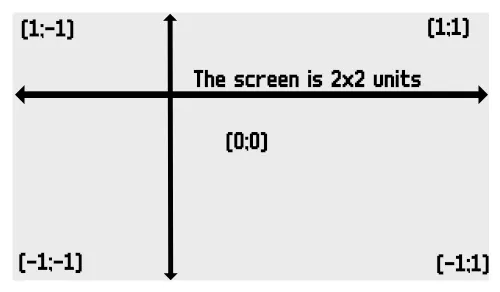
We also add a paddleSpeed constant to control how fast the paddle moves. It is a constant (const) because the speed never changes while the game runs.
I picked 1.8 after a few tries: fast enough to catch the ball, but slow enough to stay precise. Feel free to change it!
const debug = require("@vectarine/debug")const graphics = require("@vectarine/graphics")const vec4 = require("@vectarine/vec4")const vec = require("@vectarine/vec")const io = require("@vectarine/io")
-- How far the paddle moves in one secondconst paddleSpeed = 1.8
local Paddle = { position = vec.V2(-0.16, -0.85), size = vec.V2(0.32, 0.06),}
function Update(deltaTime: number) graphics.clear(vec4.WHITE)
if io.isKeyDown("right") then Paddle.position.x += paddleSpeed * deltaTime end if io.isKeyDown("left") then Paddle.position.x -= paddleSpeed * deltaTime end
graphics.drawRect(Paddle.position, Paddle.size)endYou might notice that we don’t write Paddle.position.x += paddleSpeed, but we scale it by deltaTime.
With no scaling, it means that a game running at 60 fps would move the paddle faster than a game running at 30 fps, so the gameplay would change a lot depending on the hardware. We
don’t want that! So we multiply by deltaTime so that the movement is proportional to the time elapsed since the last frame.
This code works, but the paddle can go offscreen! We need to clamp its value using:
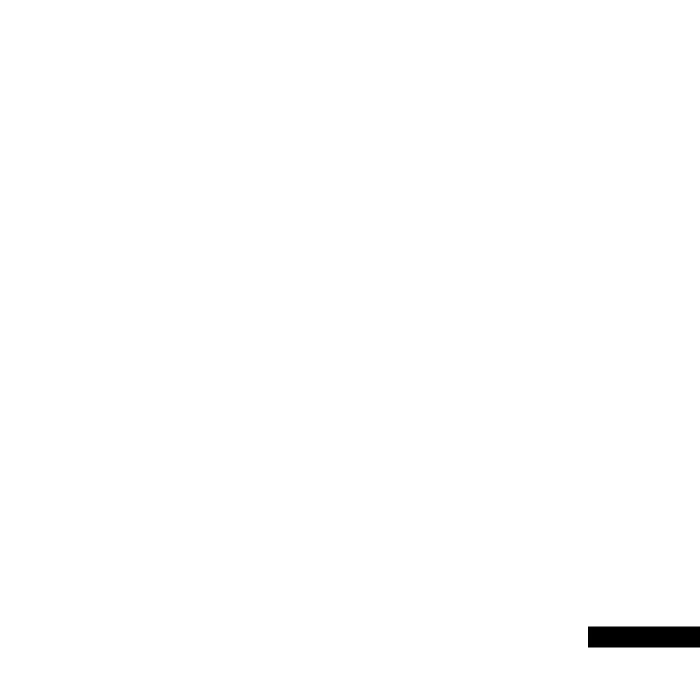
-- Right after the two if statements Paddle.position.x = math.clamp(Paddle.position.x, -1, 1 - Paddle.size.x)Now, if you hold the “Right” arrow, the paddle stops at the edge of the screen:
Persisting the paddle position
Section titled “Persisting the paddle position”When saving, Vectarine re-executes game.luau, which runs your initialization code and resets all variables, including the position of the paddle.
To preserve the paddle between saves, we can use the persist module to store the paddle position in a way that survives reloads.
persisted values are made global and can be inspected with the watcher tool.
const persist = require("@vectarine/persist")
-- You can wrap any variable initialization with persist.onReload to make it persist between reloads.local Paddle = persist.onReload({ position = vec.V2(-0.16, -0.85), size = vec.V2(0.32, 0.06),}, "paddle")
--- The rest is unchangedMove the paddle to the side, change the color of the paddle in the code and save. The paddle changes color but stays where it is!
This also means that persisted values keep their old value when you save: if you change the starting position or size of the paddle in the code, nothing happens until you press
Using an image for the paddle
Section titled “Using an image for the paddle”A black rectangle works, but it doesn’t look great. Let’s use the paddle.png image from the textures folder instead!
To draw an image, we first need to load it using the loader module.
const loader = require("@vectarine/loader")
-- Load the image once when the game starts.-- The second argument is false to keep the pixel art sharp instead of blurry when the image is drawn bigger.const paddleImage = loader.loadImage("textures/paddle.png", false)Then, inside Update, we replace graphics.drawRect with:
-- Draw the image at the position of the paddle, stretched to the size of the paddlepaddleImage:draw(Paddle.position, Paddle.size)Notice that we write paddleImage:draw with a : instead of a ..
The : means that draw is a function that belongs to paddleImage: it draws this specific image.
paddleImage:draw(...) is a shorter way of writing paddleImage.draw(paddleImage, ...).
When you save, the paddle should look like this:
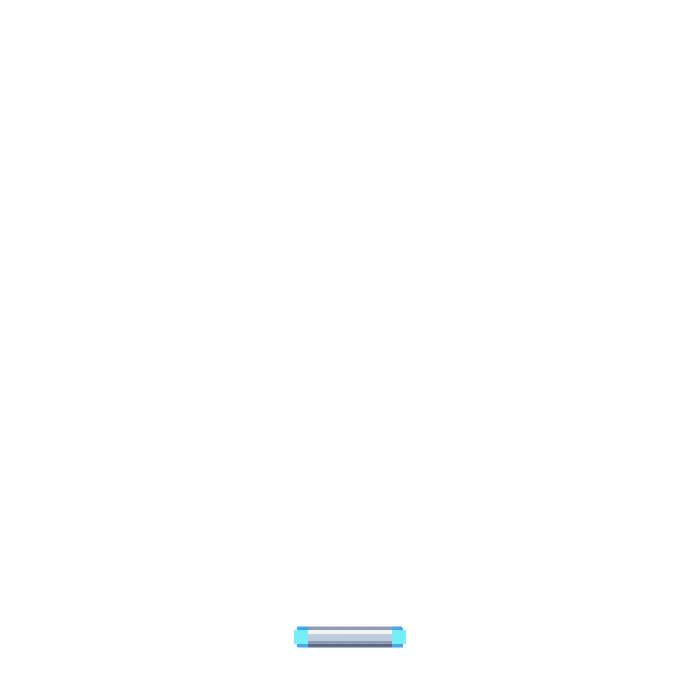
Loading an image can take a little time, especially when exporting on the web if the player has a slow connection.
While the image is not loaded yet, draw doesn’t draw anything. In the editor, this is almost instant, so you won’t notice it.
Organizing the code into functions
Section titled “Organizing the code into functions”Our Update function is starting to get long, and we’ve only made a paddle! Soon, we’ll add a ball, bricks, a score, sounds…
If we put everything inside Update, it will become very hard to read and to find where things happen.
To stay organized, we can split Update into smaller functions, each with a name that explains what it does:
updatePaddlemoves the paddle when the player presses the arrow keys.drawGamedraws everything on the screen.
-- ... the requires, constants and the Paddle variable are unchanged ...
-- Moves the paddle using the arrow keyslocal function updatePaddle(deltaTime: number) if io.isKeyDown("right") then Paddle.position.x += paddleSpeed * deltaTime end if io.isKeyDown("left") then Paddle.position.x -= paddleSpeed * deltaTime end Paddle.position.x = math.clamp(Paddle.position.x, -1, 1 - Paddle.size.x)end
-- Draws the whole gamelocal function drawGame() graphics.clear(vec4.WHITE) paddleImage:draw(Paddle.position, Paddle.size)end
function Update(deltaTime: number) updatePaddle(deltaTime) drawGame()endWhen you save, the game should behave exactly like before. We didn’t change what the code does, only how it is organized.
Now, Update reads almost like a sentence: “update the paddle, then draw the game”.
Notice that updatePaddle needs deltaTime to move the paddle at the right speed, so we pass it as an argument. drawGame doesn’t need it, so it takes no arguments.
Separating the code that updates the game from the code that draws it is a habit that will help you a lot. When something goes wrong, you’ll know where to look:
- If the paddle is at the wrong place or moves strangely, the problem is in
updatePaddle. - If the paddle is at the right place but looks wrong, the problem is in
drawGame.
What we’ve seen so far
Section titled “What we’ve seen so far”Our game now has a paddle that we can move! It doesn’t look like much yet, but this is the base of the whole game.
We’ve learned:
- How to group related values together using objects.
- How to read the keyboard using the
iomodule. - How to use
ifto run code only when a condition is true. - Why we multiply movement by
deltaTime. - How to keep a value inside some limits using
math.clamp. - How to keep values between reloads using the
persistmodule. - How to load an image with the
loadermodule and draw it. - How to organize our code into functions with clear names.
In the next part, we’ll add a ball that bounces on the walls and on the paddle.