
The bricks
We have a paddle and a ball, but nothing to break yet. In this part, we’ll add the bricks.
There are 60 bricks in our game, so before drawing them, we need to learn how to repeat code without writing it 60 times.
To draw 60 bricks, we could write 60 lines of brickImage:draw(...). This works, but it is long, boring to write,
and if you want to change the size of the bricks, you have to edit all 60 lines.
Instead, we use loops.. A loop runs the same piece of code multiple times. Luau has 3 kinds of loops.
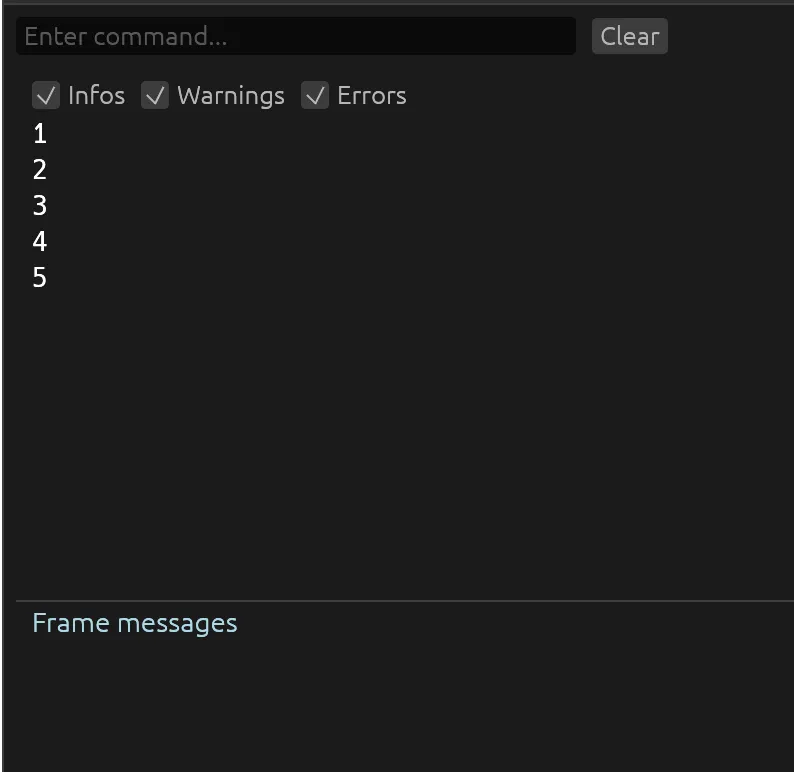
You can try all the examples of this section by putting them at the top of your game.luau file and opening the console with
Counting with for
Section titled “Counting with for”The most common loop counts from one number to another:
for i = 1, 5 do debug.print(i)endi is a variable created by the loop. It starts at 1, and increases by 1 every time the code inside the loop is executed, until it reaches 5.
You can give it any name you want, like row or column.
You can add a third number to choose by how much i changes at every step. For example, for i = 10, 1, -1 do counts down from 10 to 1.
Lists and for ... in
Section titled “Lists and for ... in”Often, we want to do something for every elment of a list. In Luau, you create a list by putting values between {}, separated by commas:
local fruits = { "apple", "banana", "cherry" }
debug.print(fruits[1]) -- prints "apple"debug.print(#fruits) -- prints 3, the number of elements in the list
-- Add "melon" at the end of the listtable.insert(fruits, "melon")To go through all the elements of a list, we use for ... in:
for index, fruit in fruits do debug.print(index, ": ", fruit)end-- Prints:-- 1: apple-- 2: banana-- 3: cherry-- 4: melonAt every step, index contains the position of the element, and fruit contains the element itself.
If you don’t need the index, you can name it _, which means “I don’t care about this value”: for _, fruit in fruits do.
Repeating with while
Section titled “Repeating with while”The last kind of loop repeats some code as long as a condition is true:
-- Doubles a number until it is bigger than 100local number = 1while number <= 100 do number = number * 2enddebug.print(number) -- prints 128while loops are less common in games, because we usually know in advance how many times we want to repeat something.
If the condition never becomes false, the loop never stops and your game freezes. This is called an infinite loop. Don’t worry, it happens to everyone. After a few seconds, Vectarine stops your script and shows “Abnormally long frame” with the file and the line where your code was stuck. Fix the loop, save, and your game starts again.
What do these pieces of code print to the console?
for i = 0, 10, 2 do debug.print(i)endSolution
It prints 0, 2, 4, 6, 8 and 10: we start at 0 and add 2 at every step until we reach 10.
local total = 0local prices = { 3, 10, 7 }for _, price in prices do total += priceenddebug.print(total)Solution
It prints 20. total starts at 0, and the loop adds each price to it: 0 + 3 + 10 + 7 = 20.
Drawing the bricks
Section titled “Drawing the bricks”Like the paddle and the ball, each brick is an object. A brick needs:
- A
position, to know where to draw it. - A
color, because each row of bricks has its own color. - A
brokenvalue, which istrueonce the ball has hit the brick.
All bricks have the same size, so we store the size in a constant instead of putting it inside every brick.
Let’s add a few constants at the top of the file, next to paddleSpeed and ballSpeed:
const brickImage = loader.loadImage("textures/brick.png", false)
-- ...
const brickSize = vec.V2(0.17, 0.08)-- The space between two bricksconst brickGap = 0.01const columns = 10const rows = 6
-- One color per row of bricks, from the top row to the bottom rowconst rowColors = { vec4.createColor(1.0, 0.0, 0.27, 1), vec4.createColor(0.97, 0.46, 0.13, 1), vec4.createColor(1.0, 0.68, 0.2, 1), vec4.createColor(0.39, 0.78, 0.3, 1), vec4.createColor(0.17, 0.91, 0.96, 1), vec4.createColor(0.71, 0.31, 0.53, 1),}rowColors is a list of colors: rowColors[1] is the color of the first row, rowColors[2] the color of the second row, etc.
I went for rainbow colors, but you can pick any colors you like.
Creating the bricks
Section titled “Creating the bricks”Now, we create the list of bricks. The bricks are arranged in a grid, so we use two loops, one inside the other: for every row, we go through every column and add a brick.
-- Creates the list of all the bricks of the levellocal function createBricks() local bricks = {} -- The top row starts at y = 0.7 local y = 0.7 for row = 1, rows do -- Every row starts on the left, at x = -0.9 local x = -0.9 for column = 1, columns do table.insert(bricks, { position = vec.V2(x, y), color = rowColors[row], broken = false, }) -- The next brick is one brick and one gap to the right x += brickSize.x + brickGap end -- The next row is one brick and one gap lower y -= brickSize.y + brickGap end return bricksend
local Bricks = persist.onReload(createBricks(), "bricks")We place the bricks like you would by hand: we put a brick, move to the right by one brick and one gap, and put the next one. When a row is complete, we move down by one brick and one gap, and go back to the left.
Notice where local x = -0.9 is: inside the row loop, but outside the column loop. This way, x goes back to -0.9 at the start of every row.
If you create x outside of both loops, the second row starts where the first row ended, and all the following bricks end up outside of the screen on the right!
Put this code below the Ball object, so that it can use the constants we created above.
Drawing them
Section titled “Drawing them”To draw the bricks, we go through the list in drawGame and draw the bricks that are not broken.
Draw them after the background, otherwise the background would cover them:
local function drawGame() backgroundImage:draw(vec.V2(-1, -1), vec.V2(2, 2)) for _, brick in Bricks do if not brick.broken then brickImage:draw(brick.position, brickSize, brick.color) end end paddleImage:draw(Paddle.position, Paddle.size) ballImage:draw(Ball.position, Ball.size)endnot turns true into false and false into true, so if not brick.broken then means “if the brick is not broken”.
The third argument of draw is a color. The brick.png image is grey, and the color is multiplied with it: a grey pixel drawn with red becomes a darker red,
and a white pixel becomes fully red. This is how we get 6 colors of bricks with only one image.
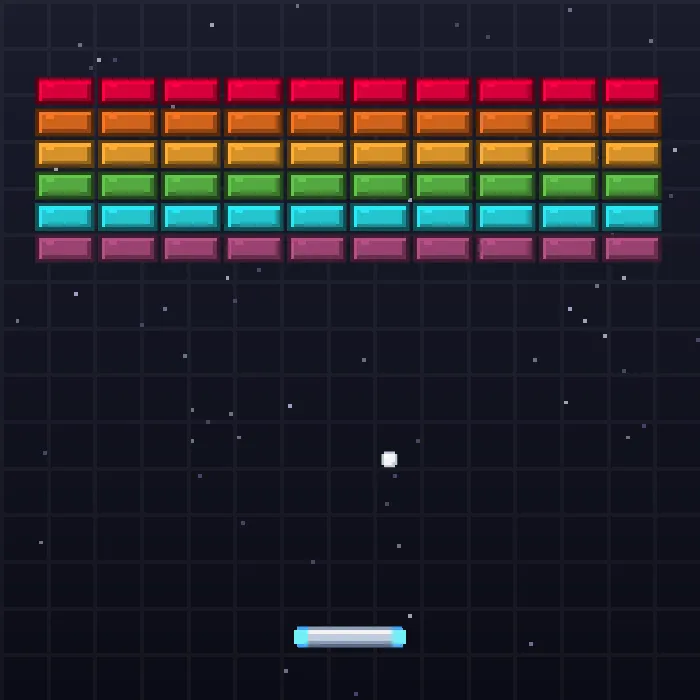
The ball goes right through the bricks for now. Let’s fix this!
Collisions
Section titled “Collisions”In updateBall, after the paddle bounce, we check if the ball touches a brick. We go through all the bricks with a loop, and use our overlaps function from the previous part:
-- Break the first brick the ball touches for _, brick in Bricks do if not brick.broken and overlaps(Ball.position, Ball.size, brick.position, brickSize) then brick.broken = true Ball.velocity.y = -Ball.velocity.y -- Stop the loop, we only break one brick per frame break end endWhen the ball touches a brick, we mark it as broken, so it is not drawn anymore and the ball can’t touch it again. Then, we make the ball bounce by flipping its vertical velocity.
break stops the loop immediately, even if there are bricks left in the list.
Without it, if the ball touched two bricks at the same time, we would flip its velocity twice, and the ball would keep going in the same direction as if nothing happened!
Why don’t we remove broken bricks from the list instead?
We could use table.remove to remove the brick from the list, so we don’t need a broken value at all.
However, removing elements from a list while you go through it with a loop is tricky: every element after the removed one moves back by one position,
and the loop can skip an element. Here, it would work because we break right after, but a broken value is easier to understand and harder to get wrong.
Hitting the side of a brick
Section titled “Hitting the side of a brick”If you play for a bit, you’ll notice something strange: when the ball hits the side of a brick, it bounces up or down instead of bouncing to the side.
To fix this, I check where the center of the ball is when it hits the brick. If the center is on the left or on the right of the brick, the ball hit its side, so we flip the horizontal velocity. Otherwise, it hit the top or the bottom, so we flip the vertical velocity:
if not brick.broken and overlaps(Ball.position, Ball.size, brick.position, brickSize) then brick.broken = true local ballCenter = Ball.position.x + Ball.size.x / 2 local hitTheSide = ballCenter < brick.position.x or ballCenter > brick.position.x + brickSize.x if hitTheSide then Ball.velocity.x = -Ball.velocity.x else Ball.velocity.y = -Ball.velocity.y end break endif ... then ... else ... end runs the first block of code when the condition is true, and the second block when it is false.
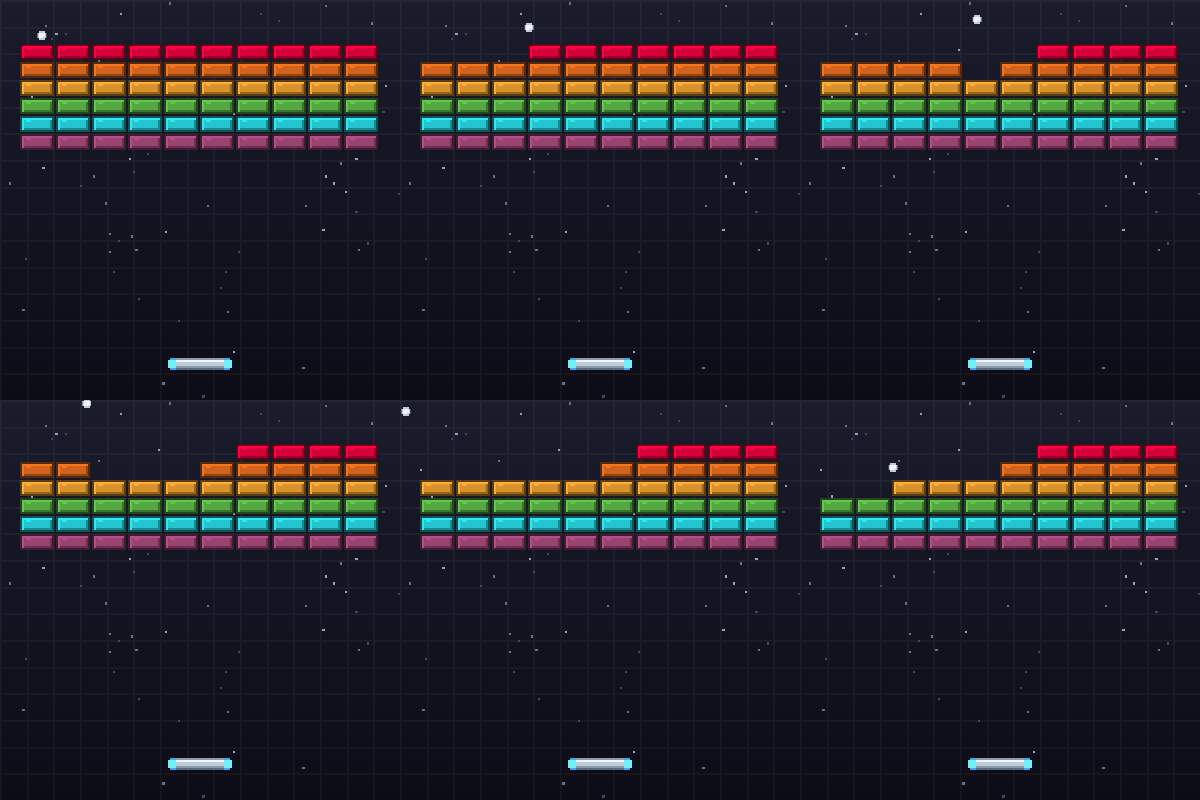
Now, try to get the ball above the bricks. It bounces between the top of the screen and the bricks, and breaks a lot of them in a row:
The whole code so far
Section titled “The whole code so far”Here is the whole game.luau file at this point:
const debug = require("@vectarine/debug")const graphics = require("@vectarine/graphics")const vec4 = require("@vectarine/vec4")const vec = require("@vectarine/vec")const io = require("@vectarine/io")const persist = require("@vectarine/persist")const loader = require("@vectarine/loader")
const backgroundImage = loader.loadImage("textures/background.png", false)const paddleImage = loader.loadImage("textures/paddle.png", false)const ballImage = loader.loadImage("textures/ball.png", false)const brickImage = loader.loadImage("textures/brick.png", false)
const paddleSpeed = 1.8const ballSpeed = 1.3
const brickSize = vec.V2(0.17, 0.08)-- The space between two bricksconst brickGap = 0.01const columns = 10const rows = 6
-- One color per row of bricks, from the top row to the bottom rowconst rowColors = { vec4.createColor(1.0, 0.0, 0.27, 1), vec4.createColor(0.97, 0.46, 0.13, 1), vec4.createColor(1.0, 0.68, 0.2, 1), vec4.createColor(0.39, 0.78, 0.3, 1), vec4.createColor(0.17, 0.91, 0.96, 1), vec4.createColor(0.71, 0.31, 0.53, 1),}
local Paddle = persist.onReload({ position = vec.V2(-0.16, -0.85), size = vec.V2(0.32, 0.06),}, "paddle")
local Ball = persist.onReload({ position = vec.V2(0, -0.5), size = vec.V2(0.045, 0.045), velocity = vec.V2(0.6, 1.1),}, "ball")
-- Creates the list of all the bricks of the levellocal function createBricks() local bricks = {} local y = 0.7 for row = 1, rows do local x = -0.9 for column = 1, columns do table.insert(bricks, { position = vec.V2(x, y), color = rowColors[row], broken = false, }) x += brickSize.x + brickGap end y -= brickSize.y + brickGap end return bricksend
local Bricks = persist.onReload(createBricks(), "bricks")
-- Returns true if the rectangle at posA of size sizeA touches the rectangle at posB of size sizeB.local function overlaps(posA: vec.Vec2, sizeA: vec.Vec2, posB: vec.Vec2, sizeB: vec.Vec2): boolean return posA.x < posB.x + sizeB.x and posA.x + sizeA.x > posB.x and posA.y < posB.y + sizeB.y and posA.y + sizeA.y > posB.yend
-- Moves the paddle using the arrow keyslocal function updatePaddle(deltaTime: number) if io.isKeyDown("right") then Paddle.position.x += paddleSpeed * deltaTime end if io.isKeyDown("left") then Paddle.position.x -= paddleSpeed * deltaTime end Paddle.position.x = math.clamp(Paddle.position.x, -1, 1 - Paddle.size.x)end
-- Moves the ball and makes it bounce on the walls, the paddle and the brickslocal function updateBall(deltaTime: number) Ball.position += Ball.velocity:scale(deltaTime)
-- Left, right and top sides if Ball.position.x < -1 then Ball.velocity.x = math.abs(Ball.velocity.x) end if Ball.position.x + Ball.size.x > 1 then Ball.velocity.x = -math.abs(Ball.velocity.x) end if Ball.position.y + Ball.size.y > 1 then Ball.velocity.y = -math.abs(Ball.velocity.y) end
-- Bounce on the paddle, only when the ball is going down if Ball.velocity.y < 0 and overlaps(Ball.position, Ball.size, Paddle.position, Paddle.size) then local ballCenter = Ball.position.x + Ball.size.x / 2 local paddleCenter = Paddle.position.x + Paddle.size.x / 2 -- offset is -1 on the left end of the paddle, 0 in the center and 1 on the right end local offset = (ballCenter - paddleCenter) / (Paddle.size.x / 2) Ball.velocity = vec.V2(offset, 1):normalized():scale(ballSpeed) end
-- Break the first brick the ball touches for _, brick in Bricks do if not brick.broken and overlaps(Ball.position, Ball.size, brick.position, brickSize) then brick.broken = true local ballCenter = Ball.position.x + Ball.size.x / 2 local hitTheSide = ballCenter < brick.position.x or ballCenter > brick.position.x + brickSize.x if hitTheSide then Ball.velocity.x = -Ball.velocity.x else Ball.velocity.y = -Ball.velocity.y end break end end
-- The ball fell below the screen: put it back at the start if Ball.position.y < -1 then Ball.position = vec.V2(0, -0.5) Ball.velocity = vec.V2(0.6, 1.1) endend
-- Draws the whole gamelocal function drawGame() backgroundImage:draw(vec.V2(-1, -1), vec.V2(2, 2)) for _, brick in Bricks do if not brick.broken then brickImage:draw(brick.position, brickSize, brick.color) end end paddleImage:draw(Paddle.position, Paddle.size) ballImage:draw(Ball.position, Ball.size)end
function Update(deltaTime: number) updatePaddle(deltaTime) updateBall(deltaTime) drawGame()endWhat we’ve seen so far
Section titled “What we’ve seen so far”We’ve seen:
- How to repeat code with
forloops,for ... inloops andwhileloops. - How to create lists, read their elements and add new elements with
table.insert. - How to use two loops, one inside the other, to create a grid of objects.
- How to give a color to an image when drawing it.
- How to stop a loop early with
break. - How to use
notandif ... else.
The game is almost complete! You can play it, but you can never win or lose, and there is no score. In the next part, we’ll add a score, lives, and what happens when you break all the bricks or miss the ball too many times.