
Improving the game feel
Our game is complete: you can win, lose and play again. But if you play it, it feels a bit flat. Breaking a brick just makes it disappear, silently.
Game feel (also called juice) is everything that makes a game satisfying to play, without changing its rules: sounds, animations, small effects that react to what the player does. Two games with the exact same rules can feel completely different depending on their game feel.
In this part, we’ll add 4 things to our game: sounds, a shader, screen shake and particles. None of them changes how the game works, but you’ll see that the game becomes a lot more fun to play.
Sound is the easiest way to make a game feel alive. Every time something happens, the player should hear it.
The sounds are in the audio folder of the zip file you downloaded at the beginning. We load them with the loader module, like images and fonts:
const bounceSound = loader.loadAudio("audio/bounce.mp3")const brickSound = loader.loadAudio("audio/brick.mp3")const launchSound = loader.loadAudio("audio/launch.mp3")const loseSound = loader.loadAudio("audio/lose.mp3")const winSound = loader.loadAudio("audio/win.mp3")To play a sound, we call its play function. For example, when the ball bounces on the left side of the screen:
if Ball.position.x < -1 then Ball.velocity.x = math.abs(Ball.velocity.x) bounceSound:play() endNow, add a play call next to every event of the game:
bounceSound:play()when the ball bounces on the left, right and top sides, and on the paddle.brickSound:play()when a brick breaks, right afterGame.score += 10.launchSound:play()inupdateReady, when the player pressesSpaceSpaceSpaceSpace .loseSound:play()when the ball falls below the screen, right afterGame.lives -= 1.winSound:play()when all the bricks are broken, right afterGame.state = "won".
A sound can only play once at a time: calling play while the sound is already playing does nothing. Our sounds are very short, so you won’t notice it.
Shader
Section titled “Shader”A shader is a small program that runs on the graphics card. The graphics card is very good at doing the same thing for a lot of pixels at the same time, so a shader can change the colour of every pixel of the screen, on every frame, without slowing down the game.
Shaders are not written in Luau, but in a language called WGSL. Don’t worry, we’ll only write a small one, and I’ll explain every line.
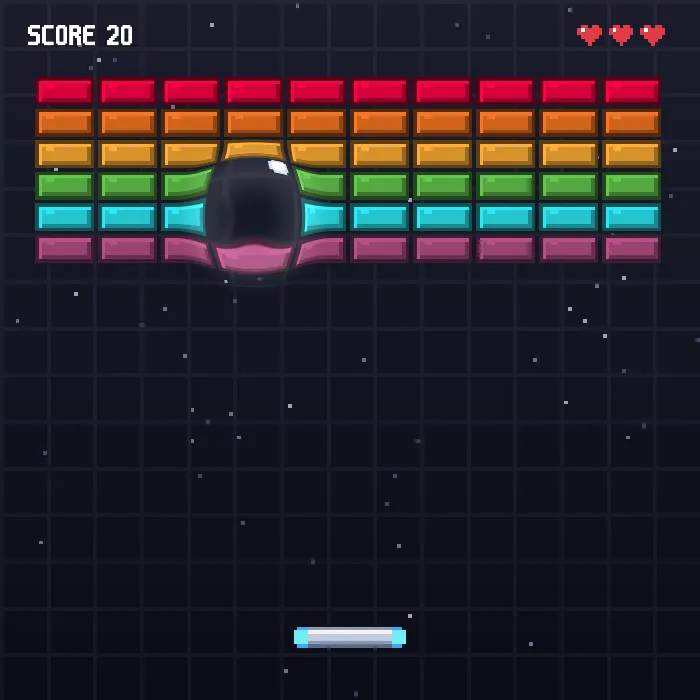
We’ll make a shockwave: when a brick breaks, a ring grows from it and bends the picture as it passes, like a wave in water.
Drawing the game in a canvas
Section titled “Drawing the game in a canvas”To apply a shader to the whole game, we first draw the game into a canvas. A canvas is like an image that you can draw on. Then, we draw the canvas on the screen, and the shader is applied while drawing it.
const canvas = require("@vectarine/canvas")
-- ...
const shockwaveShader = loader.loadShader("shaders/shockwave.wgsl")
-- ...
-- The whole game is drawn into this canvas. It has the same size as the window.local screen = canvas.createCanvas(700, 700)screen:setShader(shockwaveShader)Put the canvas below the Bricks. Then, in Update, instead of calling drawGame() directly, we paint the game into the canvas, and draw the canvas on the whole screen:
-- Everything drawn inside paint goes into the canvas instead of the screen screen:paint(drawGame) screen:draw(vec.V2(-1, -1), vec.V2(2, 2))Your first shader
Section titled “Your first shader”Create a shaders folder in your project, and a shockwave.wgsl file inside it. Let’s start with a very simple shader that inverts all the colors:
@group(0) @binding(0) var tex: texture_2d<f32>; // the image of our game@group(0) @binding(1) var tex_sampler: sampler; // how to read the image
// uv is the position of the pixel on the screen, from (0, 0) to (1, 1)@fragmentfn main(@location(0) uv: vec2f) -> @location(0) vec4f { let color = textureSample(tex, tex_sampler, uv); return vec4f(1.0 - color.rgb, 1.0);}The main function runs once for every pixel of the screen, and returns the color of that pixel. In WGSL, comments start with // instead of --, and every line ends with a ;.
uvis the position of the pixel. Careful, it goes from(0, 0)at the bottom left to(1, 1)at the top right, not from-1to1like in Luau!texis the image of our game, the content of the canvas, andtex_samplertells the graphics card how to read it. These two lines are the same in every shader: you can copy them.textureSample(tex, tex_sampler, uv)reads the color of our game at the positionuv.vec4f(red, green, blue, alpha)makes a color. The one thatmainreturns is the color the pixel will have on the screen.
Here, we read the color of the game, and replace it with 1.0 - color: black becomes white, red becomes cyan, etc.
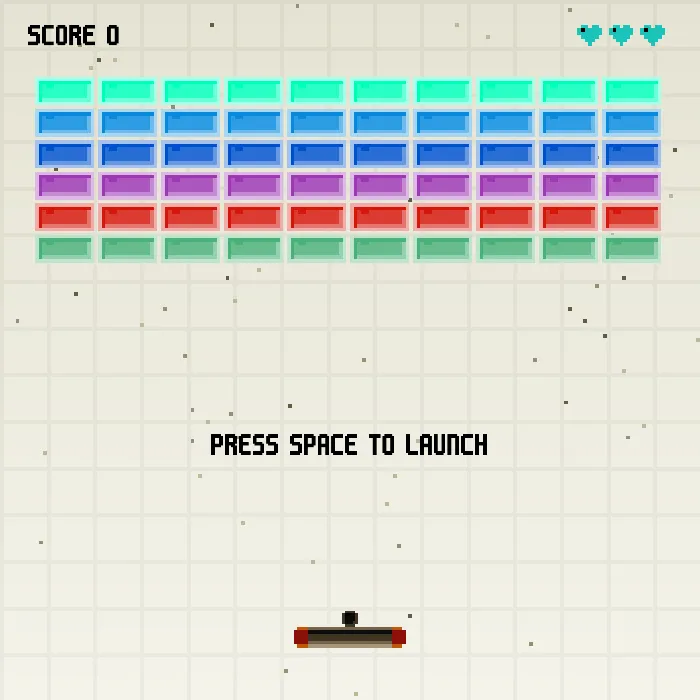
Shaders are hot-reloaded too: try to change the shader and save, the game updates immediately.
For example, return vec4f(color.r, 0.0, 0.0, 1.0); only keeps the red part of each color.
The shockwave
Section titled “The shockwave”Now, let’s write the real shader. Replace the content of shockwave.wgsl with this:
@group(0) @binding(0) var tex: texture_2d<f32>; // the image of our game@group(0) @binding(1) var tex_sampler: sampler; // how to read the image
struct Uniforms { center: vec2f, // where the brick broke, from (0, 0) to (1, 1) strength: f32, // 1 when the brick breaks, then goes down to 0}@group(1) @binding(0) var<uniform> uniforms: Uniforms;
// uv is the position of the pixel on the screen, from (0, 0) to (1, 1)@fragmentfn main(@location(0) uv: vec2f) -> @location(0) vec4f { let offset = uv - uniforms.center; let dist = length(offset);
// The ring starts small and grows while strength goes down let radius = (1.0 - uniforms.strength) * 0.5; // 1 on the ring, 0 far from it let ring = 1.0 - smoothstep(0.0, 0.05, abs(dist - radius));
// Read the pixel a bit closer to the center, so the picture looks pushed outwards on the ring let direction = offset / max(dist, 0.001); let p = uv - direction * ring * uniforms.strength * 0.025;
// The ring is also a bit brighter let color = textureSample(tex, tex_sampler, p).rgb + ring * uniforms.strength * 0.12; return vec4f(color, 1.0);}This shader has two new inputs: center and strength. Inputs that we give to the shader from our Luau code are called uniforms.
They are written together in a struct, and the shader reads them with uniforms.center and uniforms.strength.
Here is what it does for each pixel:
- It computes
dist, the distance between the pixel and the broken brick. - It computes the
radiusof the ring. Whenstrengthis1, the radius is0. Asstrengthgoes down to0, the ring grows. ringis1for the pixels on the ring and0for the pixels far from it.smoothstepmakes a smooth transition between the two, so the ring has soft edges.- For the pixels on the ring, instead of reading the game at
uv, we read it a bit closer to the center. This makes the picture look pushed outwards. - Finally, we make the ring a bit brighter.
On the Luau side, we need to remember where the shockwave starts and how strong it is. Let’s create an Effects object below the Bricks.
We’ll also put the screen shake in it, which we’ll use in the next section:
local Effects = persist.onReload({ -- How much the screen shakes. Goes back to 0 over time. shake = 0, -- How strong the shockwave is: 1 when a brick breaks, then goes back to 0. shockwave = 0, -- Where the shockwave starts, from (0, 0) to (1, 1) like in the shader shockwaveCenter = vec.V2(0.5, 0.5),}, "effects")When a brick breaks, we start a shockwave at the center of the brick. Add this to the brick collision code in updateBall:
local brickCenter = brick.position + brickSize:scale(0.5) Effects.shockwave = 1 Effects.shockwaveCenter = (brickCenter + vec.V2(1, 1)):scale(0.5)The center of the brick is in Luau coordinates, from -1 to 1, but the shader uses coordinates from 0 to 1.
To convert, we add 1 (now it goes from 0 to 2) and divide by 2 with scale(0.5).
Finally, on every frame, we make the shockwave weaker and give the values to the shader with setUniform. Put this function above Update:
local function updateEffects(deltaTime: number) Effects.shake = math.max(0, Effects.shake - 0.1 * deltaTime) Effects.shockwave = math.max(0, Effects.shockwave - 2 * deltaTime) screen:setUniform("center", Effects.shockwaveCenter) screen:setUniform("strength", Effects.shockwave)endmath.max(0, ...) makes sure the values never go below 0. The shockwave goes from 1 to 0 in half a second, and the shake will go back to 0 slowly.
Call updateEffects(deltaTime) in Update, right before painting the canvas.
Shaking
Section titled “Shaking”When something strong happens, shaking the screen a little makes the player feel it. We’ll shake the screen a bit when a brick breaks, and more when the player loses a life.
In the brick collision code, add:
Effects.shake = 0.02And when the ball falls below the screen, right after Game.lives -= 1:
Effects.shake = 0.04updateEffects already makes the shake go back to 0. To shake the screen, we move everything we draw by a small random amount, using graphics.withTransformation:
screen:paint(function() -- Move everything by a small random amount to shake the screen local shake = vec.V2(math.random() - 0.5, math.random() - 0.5):scale(Effects.shake * 2) graphics.withTransformation({ translation = shake }, drawGame) end) screen:draw(vec.V2(-1, -1), vec.V2(2, 2))math.random() gives a random number between 0 and 1, so math.random() - 0.5 is between -0.5 and 0.5. We get a random direction, which we scale by the strength of the shake.
graphics.withTransformation moves everything drawn by the function we give it, here drawGame, by translation. This way, we don’t need to change any of our drawing code.
We give paint a function written directly inside the parentheses: function() ... end. This is called an anonymous function, because it has no name.
It is convenient when a function is only used in one place.
Particles
Section titled “Particles”Particles are small things that fly around for a short time and disappear. They are used everywhere in games: sparks, smoke, dust, explosions… We’ll make small colored squares fly away from every broken brick.
Each particle has a position, a velocity, a color, and a life that goes from 1 to 0. When its life reaches 0, the particle disappears.
type Particle = { position: vec.Vec2, velocity: vec.Vec2, life: number, color: vec4.Vec4 }local Particles: { Particle } = persist.onReload({}, "particles")In the previous part, we used a type to list the allowed values of the state. Here, Particle describes what a particle contains, and { Particle } means “a list of particles”.
We need it because the list starts empty: without the type, Luau can’t guess what we will put inside.
When a brick breaks, we create 12 particles that go in random directions:
-- Makes 12 small squares fly away from positionlocal function spawnParticles(position: vec.Vec2, color: vec4.Vec4) for _ = 1, 12 do local angle = math.random() * math.pi * 2 local speed = 0.3 + math.random() * 0.7 table.insert(Particles, { position = position, velocity = vec.fromAngle(angle, speed), life = 1, color = color, }) endendmath.pi * 2 is a full turn, so angle is a random direction. vec.fromAngle(angle, speed) creates a vector pointing in that direction, with a length of speed.
Put this function above updateBall, and call it in the brick collision code, after computing brickCenter:
spawnParticles(brickCenter, brick.color)On every frame, the particles move, fall because of gravity, and lose some life:
local function updateParticles(deltaTime: number) -- We go through the list backwards, so removing a particle doesn't skip the next one for index = #Particles, 1, -1 do local particle = Particles[index] particle.velocity.y -= 2 * deltaTime -- gravity particle.position += particle.velocity:scale(deltaTime) particle.life -= 1.5 * deltaTime if particle.life <= 0 then table.remove(Particles, index) end endendRemember the question in the bricks part about removing elements while going through a list? Here we really need to remove them, otherwise the list would grow forever. The trick is to go through the list backwards, from the last element to the first: when we remove a particle, only the particles we already updated move back by one position.
Call updateParticles(deltaTime) in Update, next to updateEffects. Then, draw the particles in drawGame, before the paddle:
for _, particle in Particles do -- The particle gets smaller and more transparent as its life goes down local size = 0.025 * particle.life local color = vec4.createColor(particle.color.r, particle.color.g, particle.color.b, particle.life) graphics.drawRect(particle.position, vec.V2(size, size), color) end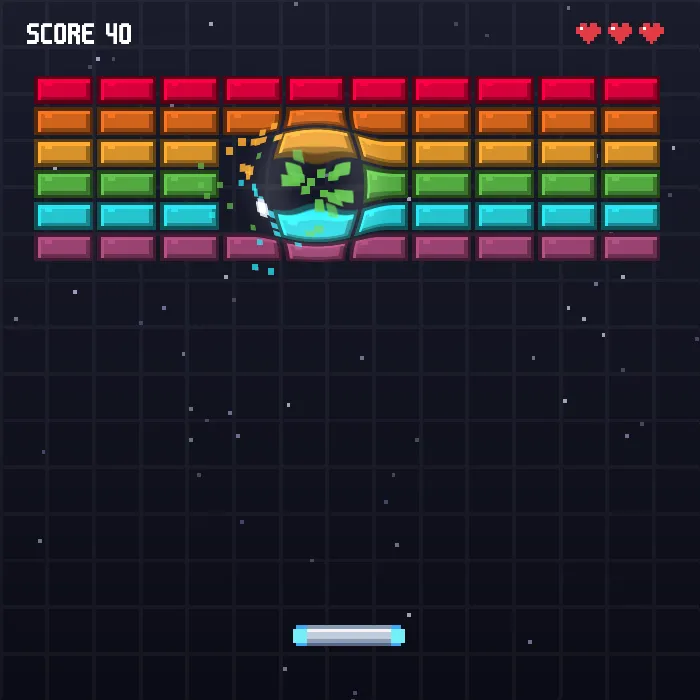
Everything together
Section titled “Everything together”Here is a gif of the game with “sounds” (you’ll have to imagine them), the shockwave, the screen shake and the particles:
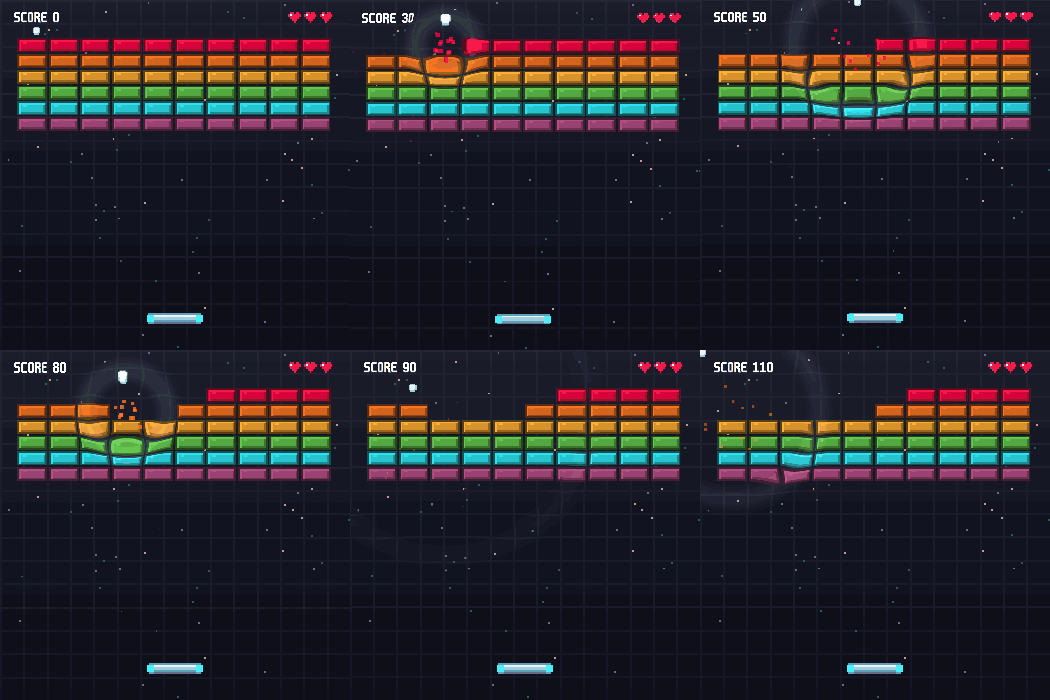
Compare it with the GIF at the end of the bricks part: the rules are exactly the same, but breaking bricks is much more satisfying!
The whole code of the game
Section titled “The whole code of the game”Here is the whole game.luau file:
const debug = require("@vectarine/debug")const graphics = require("@vectarine/graphics")const vec4 = require("@vectarine/vec4")const vec = require("@vectarine/vec")const canvas = require("@vectarine/canvas")const io = require("@vectarine/io")const persist = require("@vectarine/persist")const loader = require("@vectarine/loader")
const backgroundImage = loader.loadImage("textures/background.png", false)const paddleImage = loader.loadImage("textures/paddle.png", false)const ballImage = loader.loadImage("textures/ball.png", false)const brickImage = loader.loadImage("textures/brick.png", false)const heartImage = loader.loadImage("textures/heart.png", false)const font = loader.loadFont("fonts/m6x11.ttf")
const bounceSound = loader.loadAudio("audio/bounce.mp3")const brickSound = loader.loadAudio("audio/brick.mp3")const launchSound = loader.loadAudio("audio/launch.mp3")const loseSound = loader.loadAudio("audio/lose.mp3")const winSound = loader.loadAudio("audio/win.mp3")
const shockwaveShader = loader.loadShader("shaders/shockwave.wgsl")
const paddleSpeed = 1.8const ballSpeed = 1.3const startLives = 3
const brickSize = vec.V2(0.17, 0.08)-- The space between two bricksconst brickGap = 0.01const columns = 10const rows = 6
-- One color per row of bricks, from the top row to the bottom rowconst rowColors = { vec4.createColor(1.0, 0.0, 0.27, 1), vec4.createColor(0.97, 0.46, 0.13, 1), vec4.createColor(1.0, 0.68, 0.2, 1), vec4.createColor(0.39, 0.78, 0.3, 1), vec4.createColor(0.17, 0.91, 0.96, 1), vec4.createColor(0.71, 0.31, 0.53, 1),}
-- The game state can only be one of these 4 stringstype GameState = "ready" | "playing" | "won" | "lost"
local Game = persist.onReload({ state = "ready" :: GameState, lives = startLives, score = 0,}, "game")
local Paddle = persist.onReload({ position = vec.V2(-0.16, -0.85), size = vec.V2(0.32, 0.06),}, "paddle")
local Ball = persist.onReload({ position = vec.V2(0, -0.5), size = vec.V2(0.045, 0.045), velocity = vec.V2(0.6, 1.1),}, "ball")
-- Creates the list of all the bricks of the levellocal function createBricks() local bricks = {} local y = 0.7 for row = 1, rows do local x = -0.9 for column = 1, columns do table.insert(bricks, { position = vec.V2(x, y), color = rowColors[row], broken = false, }) x += brickSize.x + brickGap end y -= brickSize.y + brickGap end return bricksend
local Bricks = persist.onReload(createBricks(), "bricks")
local Effects = persist.onReload({ -- How much the screen shakes. Goes back to 0 over time. shake = 0, -- How strong the shockwave is: 1 when a brick breaks, then goes back to 0. shockwave = 0, -- Where the shockwave starts, from (0, 0) to (1, 1) like in the shader shockwaveCenter = vec.V2(0.5, 0.5),}, "effects")
type Particle = { position: vec.Vec2, velocity: vec.Vec2, life: number, color: vec4.Vec4 }local Particles: { Particle } = persist.onReload({}, "particles")
local screen = canvas.createCanvas(700, 700)screen:setShader(shockwaveShader)
-- Returns true if the rectangle at posA of size sizeA touches the rectangle at posB of size sizeB.local function overlaps(posA: vec.Vec2, sizeA: vec.Vec2, posB: vec.Vec2, sizeB: vec.Vec2): boolean return posA.x < posB.x + sizeB.x and posA.x + sizeA.x > posB.x and posA.y < posB.y + sizeB.y and posA.y + sizeA.y > posB.yend
-- Returns true if all the bricks are brokenlocal function allBricksBroken(): boolean for _, brick in Bricks do if not brick.broken then return false end end return trueend
-- Makes 12 small squares fly away from positionlocal function spawnParticles(position: vec.Vec2, color: vec4.Vec4) for _ = 1, 12 do local angle = math.random() * math.pi * 2 local speed = 0.3 + math.random() * 0.7 table.insert(Particles, { position = position, velocity = vec.fromAngle(angle, speed), life = 1, color = color, }) endend
local function updateParticles(deltaTime: number) -- We go through the list backwards, so removing a particle doesn't skip the next one for index = #Particles, 1, -1 do local particle = Particles[index] particle.velocity.y -= 2 * deltaTime -- gravity particle.position += particle.velocity:scale(deltaTime) particle.life -= 1.5 * deltaTime if particle.life <= 0 then table.remove(Particles, index) end endend
local function updateEffects(deltaTime: number) Effects.shake = math.max(0, Effects.shake - 0.1 * deltaTime) Effects.shockwave = math.max(0, Effects.shockwave - 2 * deltaTime) screen:setUniform("center", Effects.shockwaveCenter) screen:setUniform("strength", Effects.shockwave)end
-- Moves the paddle using the arrow keyslocal function updatePaddle(deltaTime: number) if io.isKeyDown("right") then Paddle.position.x += paddleSpeed * deltaTime end if io.isKeyDown("left") then Paddle.position.x -= paddleSpeed * deltaTime end Paddle.position.x = math.clamp(Paddle.position.x, -1, 1 - Paddle.size.x)end
-- Moves the ball and makes it bounce on the walls, the paddle and the brickslocal function updateBall(deltaTime: number) Ball.position += Ball.velocity:scale(deltaTime)
-- Left, right and top sides if Ball.position.x < -1 then Ball.velocity.x = math.abs(Ball.velocity.x) bounceSound:play() end if Ball.position.x + Ball.size.x > 1 then Ball.velocity.x = -math.abs(Ball.velocity.x) bounceSound:play() end if Ball.position.y + Ball.size.y > 1 then Ball.velocity.y = -math.abs(Ball.velocity.y) bounceSound:play() end
-- Bounce on the paddle, only when the ball is going down if Ball.velocity.y < 0 and overlaps(Ball.position, Ball.size, Paddle.position, Paddle.size) then local ballCenter = Ball.position.x + Ball.size.x / 2 local paddleCenter = Paddle.position.x + Paddle.size.x / 2 -- offset is -1 on the left end of the paddle, 0 in the center and 1 on the right end local offset = (ballCenter - paddleCenter) / (Paddle.size.x / 2) Ball.velocity = vec.V2(offset, 1):normalized():scale(ballSpeed) bounceSound:play() end
-- Break the first brick the ball touches for _, brick in Bricks do if not brick.broken and overlaps(Ball.position, Ball.size, brick.position, brickSize) then brick.broken = true Game.score += 10 brickSound:play() Effects.shake = 0.02 local brickCenter = brick.position + brickSize:scale(0.5) Effects.shockwave = 1 Effects.shockwaveCenter = (brickCenter + vec.V2(1, 1)):scale(0.5) spawnParticles(brickCenter, brick.color) local ballCenter = Ball.position.x + Ball.size.x / 2 local hitTheSide = ballCenter < brick.position.x or ballCenter > brick.position.x + brickSize.x if hitTheSide then Ball.velocity.x = -Ball.velocity.x else Ball.velocity.y = -Ball.velocity.y end break end end
if allBricksBroken() then Game.state = "won" winSound:play() end
-- The ball fell below the screen: lose a life if Ball.position.y < -1 then Game.lives -= 1 loseSound:play() Effects.shake = 0.04 if Game.lives > 0 then Game.state = "ready" else Game.state = "lost" end endend
-- The ball waits on the paddle until the player presses Spacelocal function updateReady() local x = Paddle.position.x + Paddle.size.x / 2 - Ball.size.x / 2 local y = Paddle.position.y + Paddle.size.y Ball.position = vec.V2(x, y)
if io.isKeyJustPressed("Space") then Game.state = "playing" launchSound:play() Ball.velocity = vec.V2(0.4, 1):normalized():scale(ballSpeed) endend
-- Puts everything back like at the start of the gamelocal function resetGame() Game.lives = startLives Game.score = 0 for _, brick in Bricks do brick.broken = false end Game.state = "ready"end
-- Draws text centered horizontally at the height ylocal function drawCenteredText(text: string, y: number, size: number) local width = font:measureText(text, size).width font:drawText(text, vec.V2(-width / 2, y), size, vec4.WHITE)end
-- Draws the whole gamelocal function drawGame() backgroundImage:draw(vec.V2(-1, -1), vec.V2(2, 2)) for _, brick in Bricks do if not brick.broken then brickImage:draw(brick.position, brickSize, brick.color) end end for _, particle in Particles do local size = 0.025 * particle.life local color = vec4.createColor(particle.color.r, particle.color.g, particle.color.b, particle.life) graphics.drawRect(particle.position, vec.V2(size, size), color) end paddleImage:draw(Paddle.position, Paddle.size) ballImage:draw(Ball.position, Ball.size)
font:drawText("SCORE " .. Game.score, vec.V2(-0.92, 0.87), 0.09, vec4.WHITE) for life = 1, Game.lives do heartImage:draw(vec.V2(0.92 - life * 0.09, 0.87), vec.V2(0.07, 0.06)) end
if Game.state == "ready" then drawCenteredText("PRESS SPACE TO LAUNCH", -0.3, 0.09) elseif Game.state == "won" then graphics.drawRect(vec.V2(-1, -1), vec.V2(2, 2), vec4.createColor(0, 0, 0, 0.6)) drawCenteredText("YOU WIN!", 0, 0.18) drawCenteredText("PRESS SPACE TO PLAY AGAIN", -0.15, 0.08) elseif Game.state == "lost" then graphics.drawRect(vec.V2(-1, -1), vec.V2(2, 2), vec4.createColor(0, 0, 0, 0.6)) drawCenteredText("GAME OVER", 0, 0.18) drawCenteredText("PRESS SPACE TO TRY AGAIN", -0.15, 0.08) endend
function Update(deltaTime: number) updatePaddle(deltaTime) if Game.state == "ready" then updateReady() elseif Game.state == "playing" then updateBall(deltaTime) elseif Game.state == "won" or Game.state == "lost" then if io.isKeyJustPressed("Space") then resetGame() end end updateParticles(deltaTime) updateEffects(deltaTime)
screen:paint(function() -- Move everything by a small random amount to shake the screen local shake = vec.V2(math.random() - 0.5, math.random() - 0.5):scale(Effects.shake * 2) graphics.withTransformation({ translation = shake }, drawGame) end) screen:draw(vec.V2(-1, -1), vec.V2(2, 2))endWhat we’ve seen in this section
Section titled “What we’ve seen in this section”- What game feel is, and why it matters as much as the rules of the game.
- How to load and play sounds.
- How to draw the game into a canvas and apply a shader to it.
- How to write a shader in WGSL, and give it values from Luau with uniforms.
- How to shake the screen with
graphics.withTransformation. - What anonymous functions are.
- How to create, update and remove particles.
Congratulations you did it!
Section titled “Congratulations you did it!”Well done!🎉 You’ve made a complete game with Vectarine! Starting from an empty project, you’ve learned to:
- Write Luau code with functions, variables, conditions and loops.
- Draw shapes, images and text on the screen.
- Read the keyboard to control the paddle.
- Move objects, make them bounce and detect collisions.
- Organize your game with objects, functions and a state machine.
- Make your game feel great with sounds, a shader, screen shake and particles.
These are the building blocks of almost every 2D game. Take a moment to play your game, and show it to your friends!
Next steps
Section titled “Next steps”The best way to keep learning is to keep working on your game. Here are a few ideas, from the easiest to the hardest:
- Give more points for the bricks at the top, which are harder to reach.
- Make the ball go a bit faster every time it breaks a brick.
- Add bricks that need 2 hits to break, and change their color after the first hit.
- Add power-ups that fall from some bricks, like a bigger paddle or a second ball.
- Save the best score with
persist.saveandpersist.load, so it is kept when the game is closed. - Add several levels, with a different arrangement of bricks for each one.
When you are ready for a new project, these guides will help you go further:
- Take a tour of Vectarine to see all the features of the engine.
- Making a platformer to make a game with gravity and jumps.
- Drawing images and levels with tilesets to build bigger levels.
- Making user interfaces to add menus and buttons.
You can also look at the gallery to see what other people made with Vectarine, and come say hi on Discord to show us your game!